For those who wish to maintain using their own mail server, another alternative is to use port 587 It may or may not be turned on. You’ll need to check with the administrator or hosting service whether they has turned on and support port 587.
Outlook express
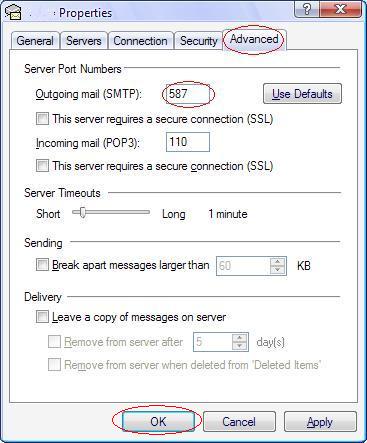
- To configure port 587 at outlook express, click on the Advance tab as below and put port 587 for Outgoing mail (SMTP). Click Apply, then click OK.
Microsoft outlook 2003
- To configure port 587 at Microsoft outlook 2003, click More Settings (refer above). Click on the Advance tab as below and put port 587 for Outgoing mail (SMTP). Click Apply, then click OK.

Microsoft outlook 2000
- To configure port 587 at Microsoft outlook 2000, click on the Advance tab as below and put port 587 for Outgoing mail (SMTP). Click Apply, then click OK.

Mozilla Thunderbird
- To configure port 587 at Mozilla Thunderbird, change the Port: (refer below) from port 25 to port 587. Click OK.

Eudora
- To configure port 587 at Eudora, Open Eudora and create a new message.
- Paste the following string into the message: x-eudora-option:SMTPPort=587
- Hit enter and the string should turn into a link then hold the “Alt” key and click the link and click “OK” in the pop-up window.

MAC OS X Mail
- To configure port 587 at MAC OS X Mail, put port 587 at theServer Port: as below. Click OK.

Posted in: Web & Email